
The IF function is one of the most popular functions in Excel, and it allows you to make logical comparisons between a value and what you expect.
So an IF statement can have two results. The first result is if your comparison is True, the second if your comparison is False.
For example, =IF(C2=”Yes”,1,2) says IF(C2 = Yes, then return a 1, otherwise return a 2).
Syntax
Use the IF function, one of the logical functions, to return one value if a condition is true and another value if it’s false.
IF(logical_test, value_if_true, [value_if_false])
For example:
- =IF(A2>B2,”Over Budget”,”OK”)
- =IF(A2=B2,B4-A4,””)
| Argument name | Description |
| logical_test (required) | The condition you want to test. |
| value_if_true (required) | The value that you want returned if the result of logical_test is TRUE. |
| value_if_false (optional) | The value that you want returned if the result of logical_test is FALSE. |
Simple IF examples

- =IF(C2=”Yes”,1,2)
In the above example, cell D2 says: IF(C2 = Yes, then return a 1, otherwise return a 2)
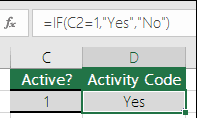
- =IF(C2=1,”Yes”,”No”)
In this example, the formula in cell D2 says: IF(C2 = 1, then return Yes, otherwise return No)As you see, the IF function can be used to evaluate both text and values. It can also be used to evaluate errors. You are not limited to only checking if one thing is equal to another and returning a single result, you can also use mathematical operators and perform additional calculations depending on your criteria. You can also nest multiple IF functions together in order to perform multiple comparisons.

- =IF(C2>B2,”Over Budget”,”Within Budget”)
In the above example, the IF function in D2 is saying IF(C2 Is Greater Than B2, then return “Over Budget”, otherwise return “Within Budget”)
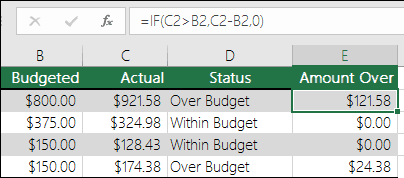
- =IF(C2>B2,C2-B2,0)
In the above illustration, instead of returning a text result, we are going to return a mathematical calculation. So the formula in E2 is saying IF(Actual is Greater than Budgeted, then Subtract the Budgeted amount from the Actual amount, otherwise return nothing).

- =IF(E7=”Yes”,F5*0.0825,0)
In this example, the formula in F7 is saying IF(E7 = “Yes”, then calculate the Total Amount in F5 * 8.25%, otherwise no Sales Tax is due so return 0)
Note: If you are going to use text in formulas, you need to wrap the text in quotes (e.g. “Text”). The only exception to that is using TRUE or FALSE, which Excel automatically understands.
Common problems
| Problem | What went wrong |
| 0 (zero) in cell | There was no argument for either value_if_true or value_if_False arguments. To see the right value returned, add argument text to the two arguments, or add TRUE or FALSE to the argument. |
| #NAME? in cell | This usually means that the formula is misspelled. |
SAP distribusi elektronik SAP distribusi medical devices SAP Industri Makanan Minuman SAP Logam Machinery ERP distribusi medical devices ERP Logam Machinery Microsoft Dynamic distribusi elektronik Microsoft Dynamics Industri Makanan Minuman Oracle distribusi elektronik Oracle distribusi medical devices Oracle Logam Machinery Financial Planing & Budgeting Software Financial Budget Planing Application Financial Consolidation Software Financial Consolidation Application EAM Implementation EAM Implementer MAXIMO Implementation MAXIMO Implementer Implementor ERP di Indonesia Epicor Indonesia Epicor Implementer Epicor Implementation
Posted by : Muhammad Faris, Digital Marketing of PT. Rajawali Adikarya